Create the Data Store
Create a data store
AWS has many database options available. DynamoDB is a very cost effective option for many workloads because it is serverless, schemaless, and easy to manage. AWS Amplify allows us to create a DDB table, which we will do by using the storage category.
From your terminal, run the following command: (If the web server is currently running, press CTRL-C to stop the current running server.)
amplify add storage
Choose NoSQL Database

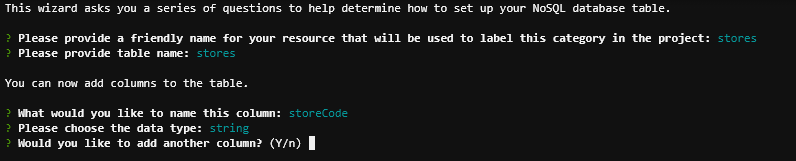
Enter the following information for each question:
- Friendly name: stores
- table name: stores
- column name: storeCode
- data type: string
- Select N to continue without additional columns
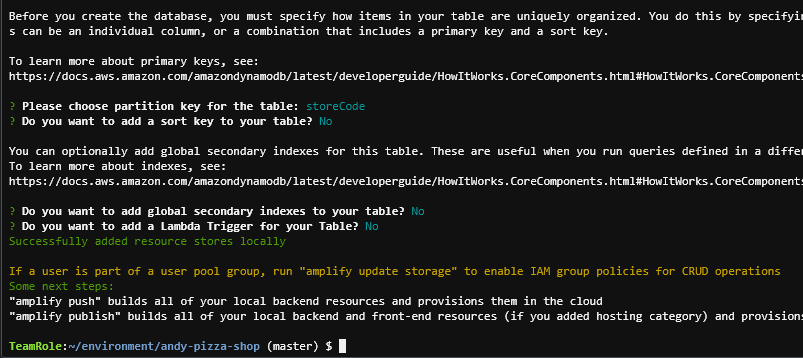
Choose storeCode as the partition key, and then select N for the other options
Push the changes to AWS:
amplify push
Wait for the push to complete. Once complete, you can view your new table in the DynamoDB Tables Console. Click on the table name (stores-dev), and then click the Items tab:
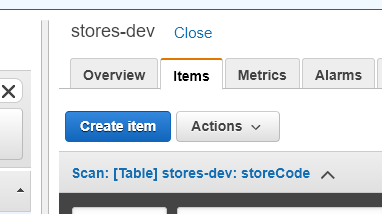
Next, click Create Item. Enter the following fields:
- storeCode: S001
- name: Andys Pizza
- city: Atlanta
- state: GA
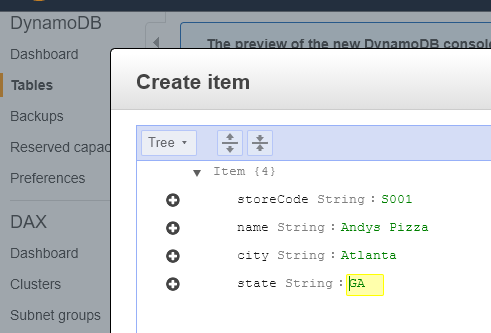
DynamoDB is schema-less, meaning that it only requires a primary key (partition + optional sort key), but all other fields can vary per row.
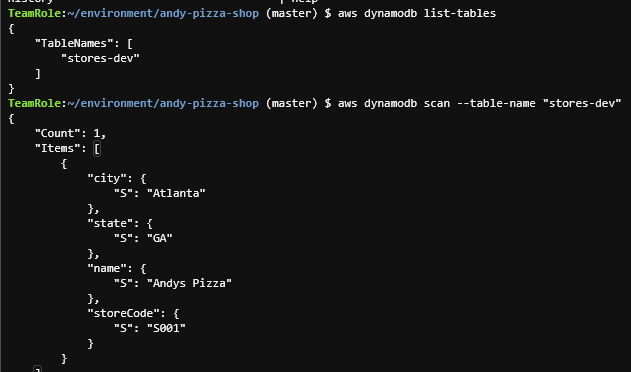
Back in the Cloud9 terminal, you can run a few commands to view and confirm the creation of your DynamoDB table.
aws dynamodb list-tables
aws dynamodb scan --table-name "stores-dev"